Your email address shows up in more places than you think. It sits in the corner of your inbox and in the account menu of most web apps. When you share your screen, everyone on the call can read all of it, and a recording keeps it for good.
I make Hushpane, a browser extension that blurs private details on a web page, so I tested the blur part of this routine on a mock inbox I wrote with fake data. The other steps are standard advice that I did not test. The short answer: share one window or tab. Close what you do not need, then blur the addresses that remain on the page.
If your call is on Zoom, there is a Zoom specific version of this post: how to hide your email address on Zoom.
Where does my email address hide?
Picture your screen as a desk with name badges scattered across it. Some badges are on the papers you mean to show. Others are on the desk itself, in the form of notification banners and other windows. Sharing one window clears the desk. Blurring puts a sticker over the badges on the papers you keep. I come back to the desk in each step.
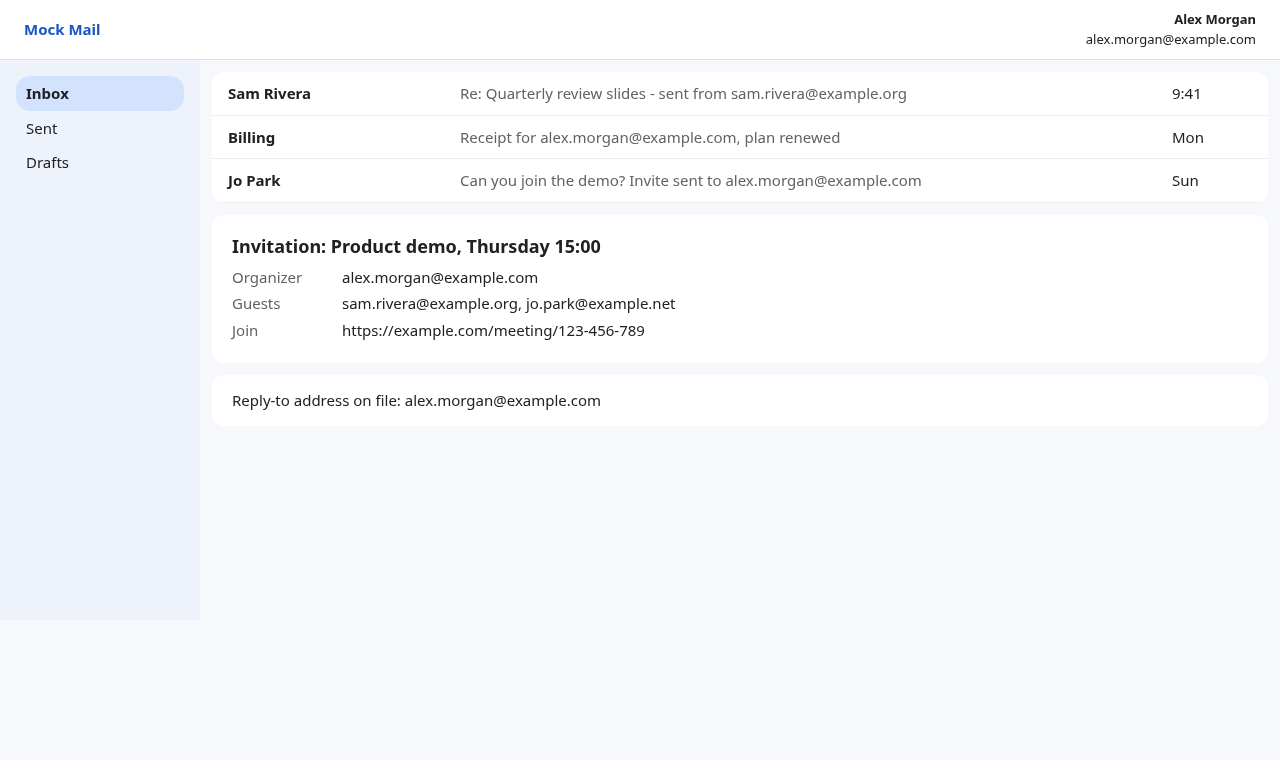
My mock inbox has 8 addresses in its text: the account corner, three message previews, the invite’s organizer line, a guest line with two addresses and a reply-to line. Here it is with nothing hidden:
How do I share without showing everything?
Share only one browser window or one tab. Sharing the whole screen shows everything on it. Most video call tools let you pick. That is the quickest way to clear the desk. I did not test any call tool’s picker for this post, so share a test screen to yourself first and look at what shows.
Then close what you do not need. Close the inbox and the chat apps. Close any tab that has your address in its title. Tab titles are easy to forget because they stay visible in the tab strip.
How do I stop notifications from showing?
Turn on Do Not Disturb (macOS Focus or Windows Focus) before you start. A new message banner can show the sender and the subject.
In desk terms, a banner lands on the desk, out of a sticker’s reach. Hushpane works on web pages, and a notification banner belongs to your operating system. I did not test the operating system settings for this post, so use your system’s own help pages for the exact steps.
What about the account menu and autofill?
Open the page you will show and look at the account menu, the settings page and any “signed in as” line. If your address is there, plan to cover it.
Autofill is easy to miss. Click into a login or contact field once, in private, and look at the dropdown. Browsers list saved addresses there. Remove the ones you do not want on a call, or use a fresh browser profile for demos. I did not test browser autofill dropdowns for this post, and Hushpane does not blur them.
Is a demo account better than blurring?
When you can use one, yes. Sign in with a test account that has a throwaway address, and the page has no real address to leak. Blur is the fallback for when you must show a real page. I did not test this step.
How do I blur the addresses that are left?
Hushpane gives you two ways to put a sticker on a badge, and they differ in effort.
What does the free click to blur do?
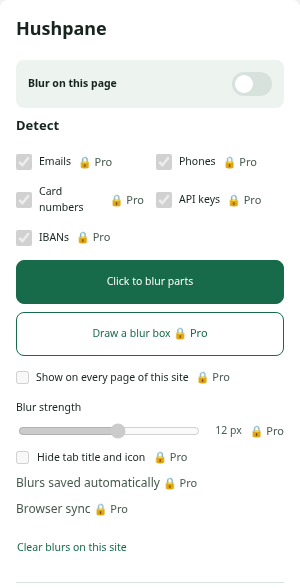
You open the popup, press “Click to blur parts” and click an element.
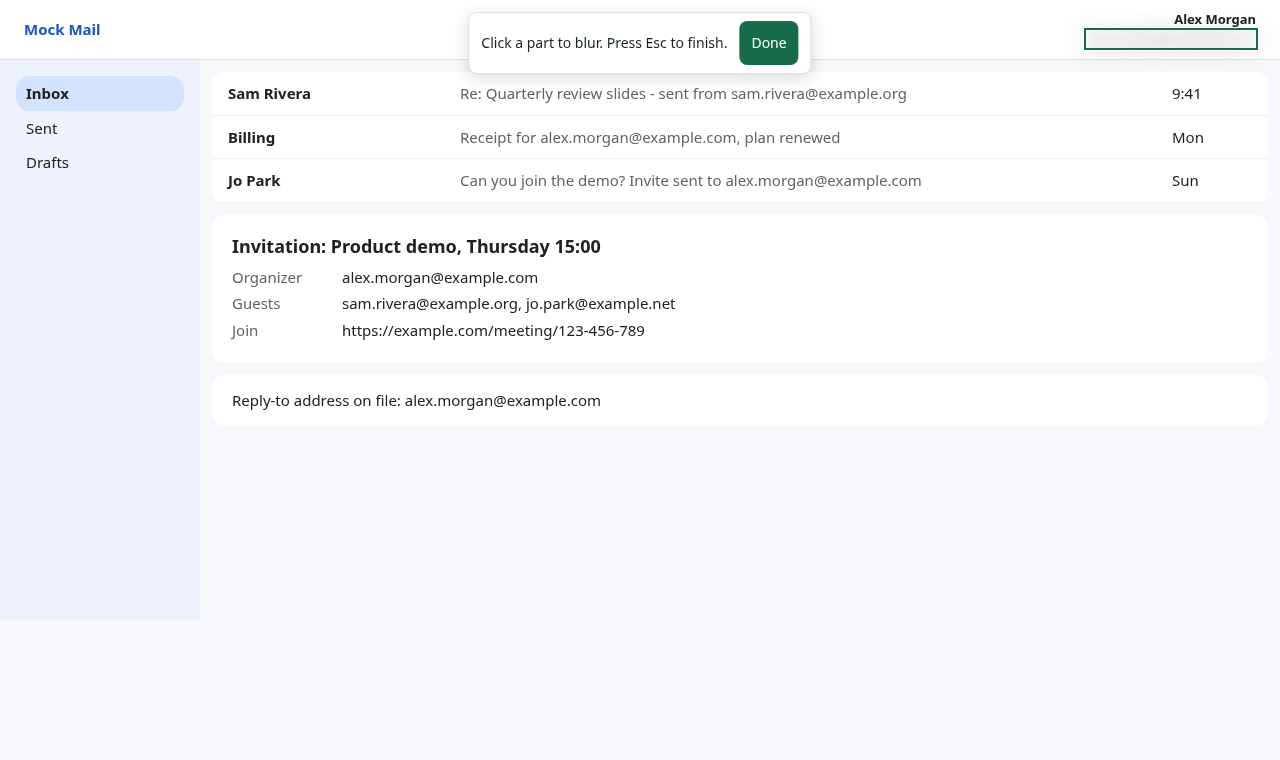
Each click blurs one whole element, which can be a full line, label included. In my test, the first click blurred the address in the account corner.
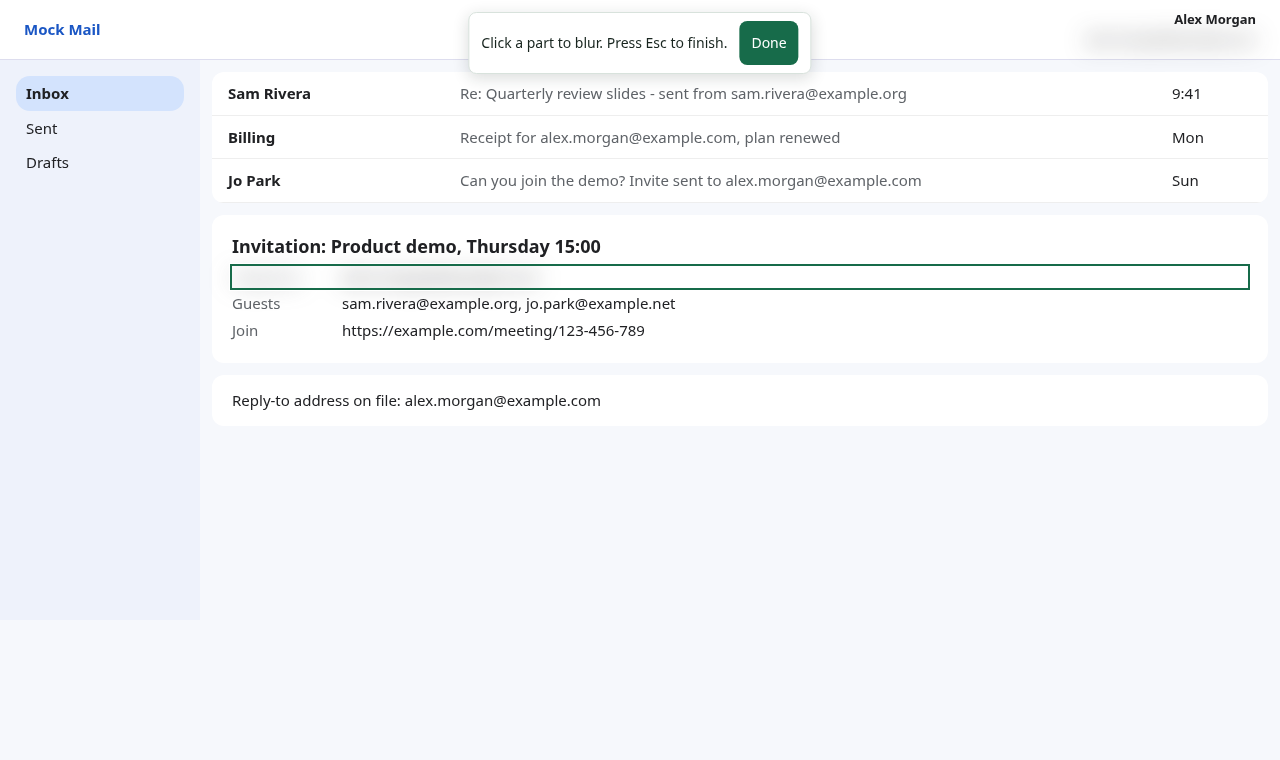
A second click on the organizer line blurred that whole row, label included.
After I reloaded the page, 0 elements were blurred. Free picks are not saved. By my count of the page structure (the two guest addresses share one line), the remaining 6 addresses would take 5 more clicks. I did not run those clicks, and the picks would be gone again after every reload.
What does Pro do automatically?
Pro ($4.99 a month or $47 a year) finds addresses on the page and blurs them. You turn on “Blur on this page” once.
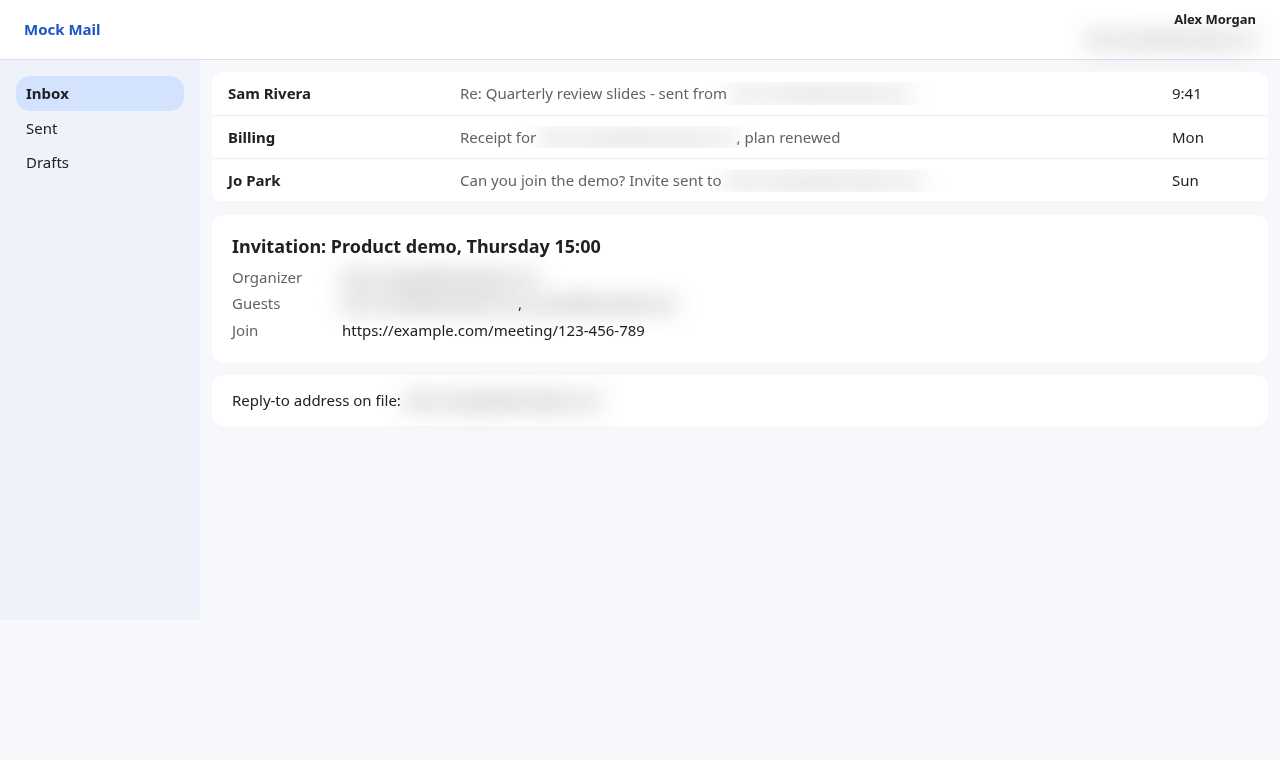
All 8 addresses were blurred in my runs. The first blur appeared 28 and 39 milliseconds after I flipped the switch in two runs. These are my own scripted timings on a mock page, so treat them as a rough guide. A heavy real page may take longer.
Here is how the options compare:
| Method | What it covers | Effort | Remembers after reload |
|---|---|---|---|
| Share one tab | Whatever is outside that tab (not tested) | One choice in the call tool | Not applicable |
| Do Not Disturb | Notification banners (not tested) | One switch | Check your system’s settings |
| Free click to blur | The elements you click | One click per element | No |
| Pro automatic blur | Addresses in page text | One switch | Saved rules return per the extension docs; I did not test a Pro reload |
| Demo account | No real address to leak (not tested) | Set up once | Not applicable |
What does the blur not do?
The blur is visual only. The original text is still in the page, so anyone who opens developer tools on your computer can read it. Hushpane’s detection reads page text, so an address inside an image or a canvas is not found. The store listing says the same about frames. On a second mock page I wrote, an address drawn on a canvas stayed sharp until I drew a blur box over it. The details are in the Zoom post.
The browser’s tab strip and address bar are outside its reach. So are system notifications. Pro has a setting to hide the tab title and icon, which I did not test. In some of my scripted runs the blur did not start within 10 seconds. I did not count them, a rerun worked each time and I did not find the cause. That is why the next section matters.
How do I check my screen before I share it?
Looking at the screen is the last check of the desk, and my scripted runs show why it matters: sometimes the blur did not start at all. Do it in this order:
- Share, then look at the preview your call tool shows of what others see. Many tools show one, though I did not check which.
- Read the four corners of the page, because account menus live there.
- Scroll to the bottom of the page. Footers and billing blocks can repeat your address.
- Open any dropdown you plan to use during the demo. A dropdown is new content, and Hushpane’s store listing warns that changed content can appear briefly before the blur applies.
- Look at the tab strip and the window title, which a page blur does not cover.
If the preview shows a readable address, stop sharing, fix it and start again. Stopping takes a few seconds, and a recording keeps whatever was shown.
What is the quick checklist?
- Share one window or tab and clear the desk.
- Close inboxes and chat apps.
- Turn on Do Not Disturb.
- Check the account menu and the tab titles for an address.
- Clear autofill suggestions.
- Blur what is left, then look at your own screen before you press share.
Hushpane for Chrome is free for click to blur.
The three takeaways
- Sharing one window or tab clears the desk, and a blur is the sticker for the badges left on the papers.
- Use a demo account when you can. Blur is the fallback.
- Automatic blur found all 8 addresses in my page text, but it is visual only, so look at your screen before you share.
Next step: open the busiest page you plan to show, turn on a blur and check it against your own screen.