“Hide my email on Zoom” is really three questions. Your address can sit in an invite you send or in the participant list on other people’s screens. It can also sit on the web page you are sharing. Each one has a different fix, and only the last one is something a browser extension can touch.
I make Hushpane, a browser extension that blurs private details on a web page. This post covers what Zoom’s own settings do, what I could and could not check without a logged-in Zoom account, and what I tested on a local meeting page with fake data.
The short version: set the sender of your invite on purpose and give yourself a display name you are happy to show. Then share only one tab or window and blur whatever address is left on the page.
Where does Zoom show my email address?
Think of your email address as a name badge. Zoom decides what is printed on the badge, which is your display name. The page you share is a table covered in papers, and the badge sits among them. Hushpane puts a sticker over one paper on that table. The badge itself is Zoom’s to print, and the lanyard card in your pocket is your operating system.
Here are the three cases and who controls each one:
| Case | Where it shows | Who controls it | Fix |
|---|---|---|---|
| Invite | The email or calendar event you send | Your mail account | Send from an address you are fine sharing |
| Participant | Your tile and the participant list | Your Zoom display name, and the host’s rename setting | Change the display name before you join |
| Shared screen | Account menus and inboxes on pages you show | You | Share one tab or window, then blur what is left |
How did I test this?
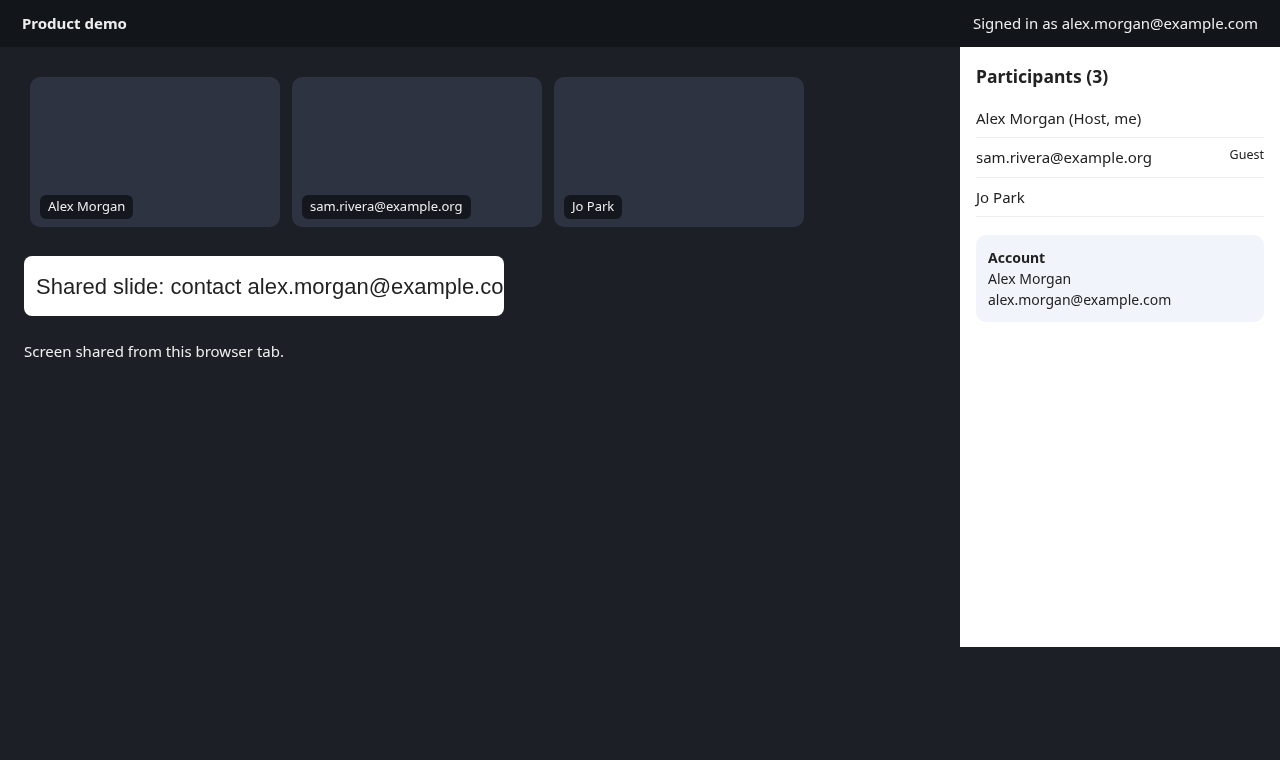
I tested on 2026-11-22 with Hushpane 0.1.0 loaded in a headless Chromium based browser (Brave 158). I wrote a local meeting page with fake data, because I did not want a real account on screen. It has a signed-in line and an account box. Its participant list has one guest whose display name is an address, and a slide is drawn on a canvas. Every address is alex.morgan@example.com or another example address.
What I did not test is Zoom itself. I did not sign in to a Zoom account, so I did not click through Zoom’s settings screens. For those steps I link Zoom’s own help pages and repeat what they say. If a menu has moved since, trust Zoom’s page over mine.
How do I hide my email in a Zoom invite?
An invite carries your address when it travels by email or calendar. From that point the sender is your mail account. Zoom’s help page on default email for invites describes an account owner or admin setting that controls which mail options are offered when you send an invite, so it does not change the sender line for you.
What works is picking the sending account on purpose. If you have a work address and a personal address, schedule from the one you are happy to show. I could not check how a guest’s calendar shows the organizer, so look at a calendar invite you sent to yourself.
I could not check what Zoom’s invite text prints for your account, because I did not open a real one. Before you invite someone you do not know, send the invite to yourself first and read the sender line and the body.
How do I stop my email showing as my name in a Zoom meeting?
Zoom shows your display name on your tile and in the participant list. It shows an email address only when the name field holds one. That can happen when someone types an address into the name box as they join, or when an account was set up with the address as the name.
Zoom’s page on changing your display name gives two routes:
- In a meeting on the desktop app, open Participants, hover over your name, click the ellipsis icon, click Rename, type a name and click Change.
- For a permanent change, click your profile picture, then Profile, then My profile. A browser window opens where you edit the display name in the Zoom web portal.
The in-meeting rename only works when the host has turned on “Allow participants to rename themselves”. If you do not see the option, the host switched it off. Account owners and admins control that setting at account level, and Zoom explains it on its page about allowing or preventing renaming. If you host, remember that a guest whose name is an address cannot fix it when you have locked the setting.
Zoom also has a watermark feature that puts the viewer’s address on shared content. Per Zoom’s watermark page, it overlays the viewer’s email address on shared content: a basic watermark shows part of the address and an enhanced one shows all of it. Account owners and admins can enable it for an account or group, and users can turn it on for their own meetings unless an admin locked it. If you see an address over a shared screen, check that setting first.
One more setting changes the participant list. Zoom can hide profile pictures so only names show. Zoom describes it as a host action under Security that can also be set for an account or group. It concerns pictures only, so it will not touch a name that is an address.
How do I hide my email on a shared screen?
Start with Zoom’s own share options. When you click Share Screen, Zoom lets you pick what to share. Pick one browser window, or better, one tab. In my understanding a shared window shows only that window, but I did not click through Zoom’s share picker for this post and found no Zoom page that says so. Share a test screen to yourself first and look.
That still leaves the page you chose to show. Many web apps print your address in a corner. Here is my test page before I did anything:
What does the free version do?
Click to blur is free. You open the Hushpane popup, press “Click to blur parts” and click the element you want to hide. Each click blurs one element. The picks are not saved and they disappear when you reload the page. I checked this on a mock inbox: after one click one element was blurred, after two clicks two, and after a reload none.
Free mode suits a page with one or two addresses. It is a small job done by hand.
What does Pro do automatically?
Pro ($4.99 a month, or $47 a year for 3 browsers) finds addresses on the page and blurs them for you. You open the popup and turn on “Blur on this page”.
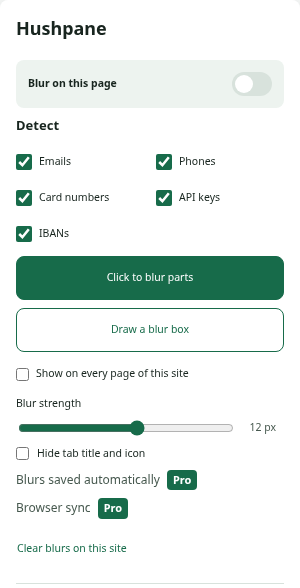
On my mock meeting page the text held 4 addresses and 4 elements were blurred. The first blur appeared 51 and 79 milliseconds after I flipped the switch in two runs. On a mock inbox with 8 addresses in its text, 8 elements were blurred, 28 and 39 milliseconds after the switch in two runs. These timings come from my own scripted runs, so treat them as a rough guide.
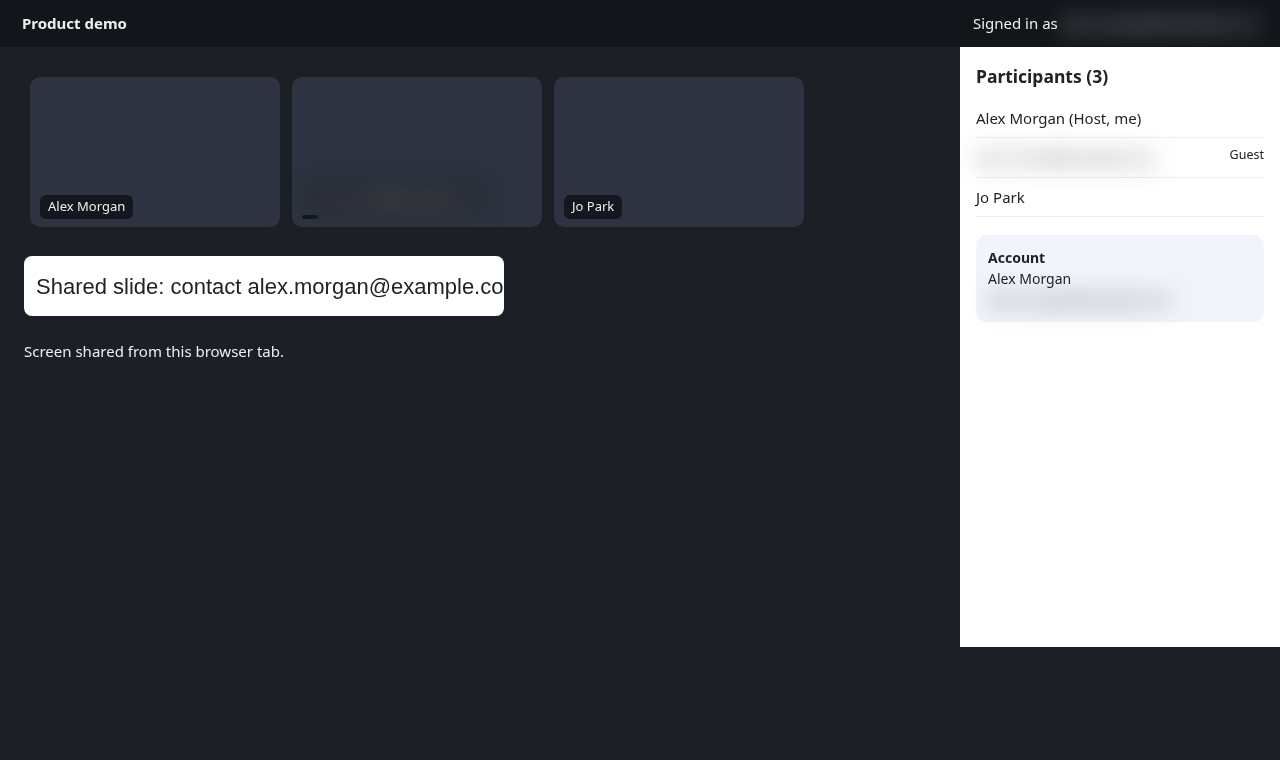
Look at the slide in that picture. The address drawn inside the slide is still sharp. Automatic detection reads page text, so it cannot read text drawn inside a picture or canvas. That limit matters whenever you share slides or screenshots of pages.
How do I cover an address inside an image?
Pro can draw a blur box. You press “Draw a blur box” in the popup, then drag over the area. The box blurs whatever is under it without reading it, so it works on images and canvas.
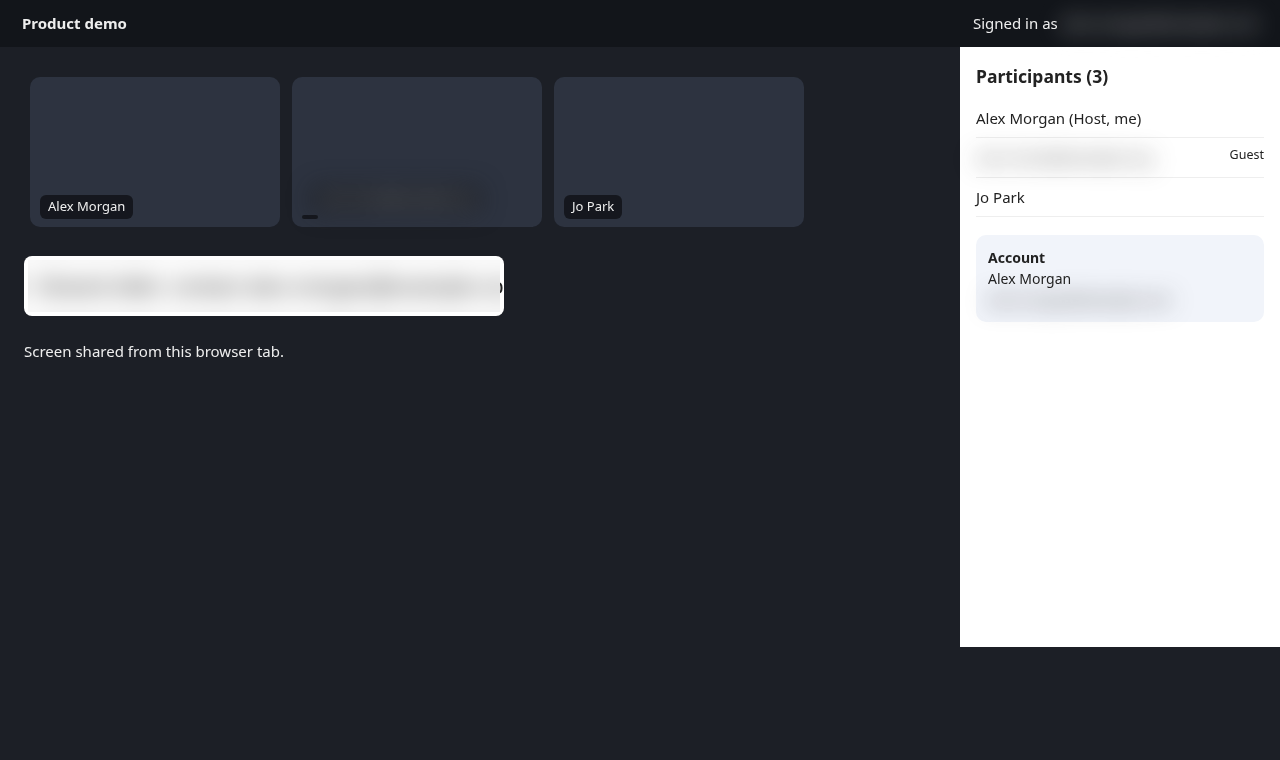
In my test the box covered the slide address. I did not test what happens when the slide changes under the box, so check again after every change.
What does Hushpane not hide on a Zoom call?
Hushpane works inside a web page. These stay outside its reach:
- Notification banners from your operating system. A message that pops up could show if you share a whole desktop. I did not test this. I did not test or look up Zoom’s own notification settings for this post.
- The browser’s own tab strip and address bar. A tab title can hold an address. Pro has a setting to hide the tab title and icon, which I did not test here.
- Zoom’s own desktop window. The app’s menus are not a web page.
Blur is also visual only. The address is still in the page, so anyone with developer tools open on your computer can read it. In a few of my scripted runs the blur also did not start within 10 seconds. A rerun worked each time and I did not find the cause. Look at your own screen before you share, every time.
What should I do before my next Zoom call?
- Send your next invite to yourself and read the sender line.
- Open Zoom’s rename setting and set a display name you want to be seen.
- Share one tab, then blur what is left in it.
If you use Chrome or Edge, Hushpane is in the Chrome Web Store. For the general version of this checklist, see how to hide your email address before sharing your screen.
The three takeaways
- Your mail account decides who sent the invite, and Zoom’s display name is the badge. The page you share is where a blur helps.
- Sharing one tab or window leaves less on screen to leak, so it is the first thing to try.
- Automatic blur reads page text and misses text inside pictures. Draw a sticker-sized box over those.
Next step: open your mail account menu in a tab, turn on the blur and look at your own screen once before the call.